SG Timer Monitor connects over Bluetooth to an SG Timer Sport or SG Timer GO and shows every shot on your phone the moment it is fired. Sessions are kept on the device and go to the PiRO calculator with a single button. It works at the range without Internet – no install, no account.
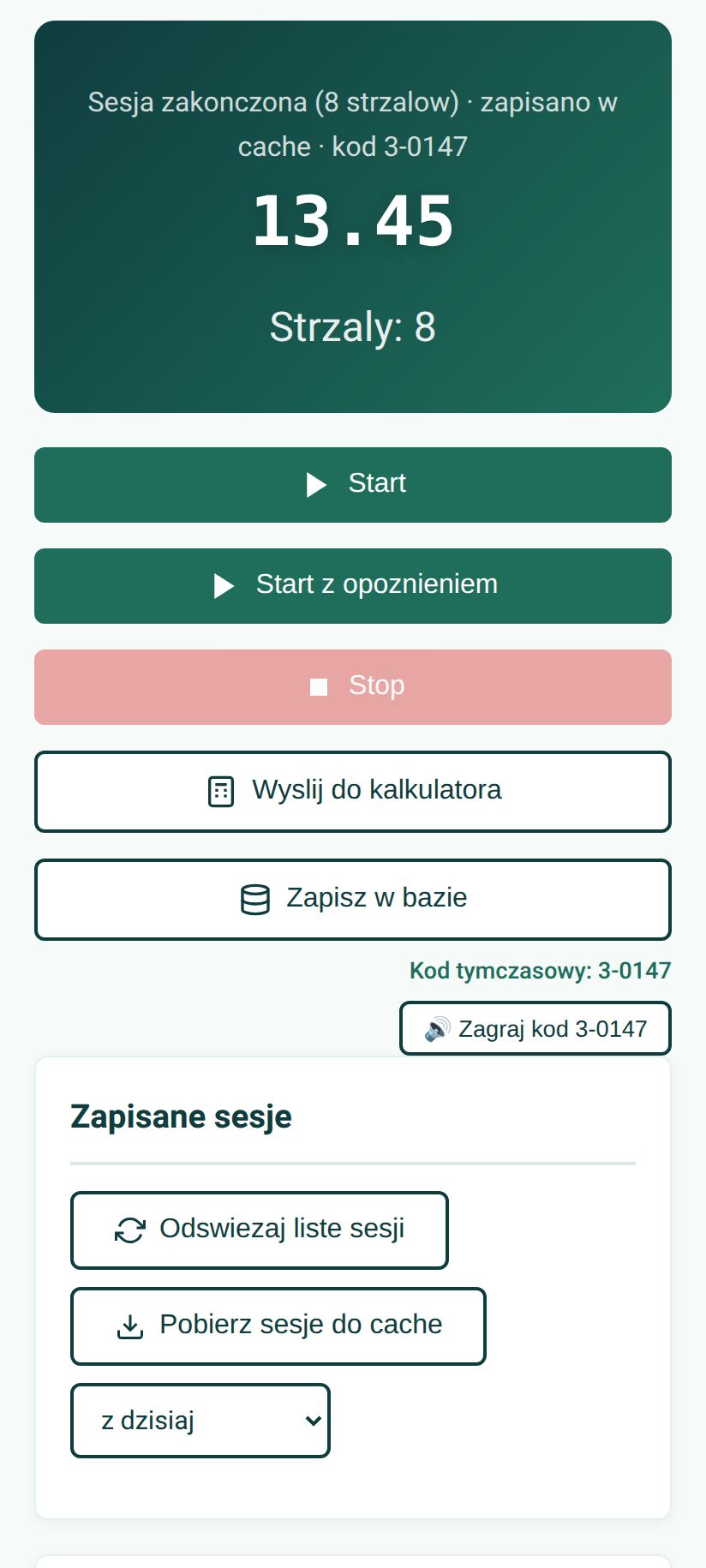
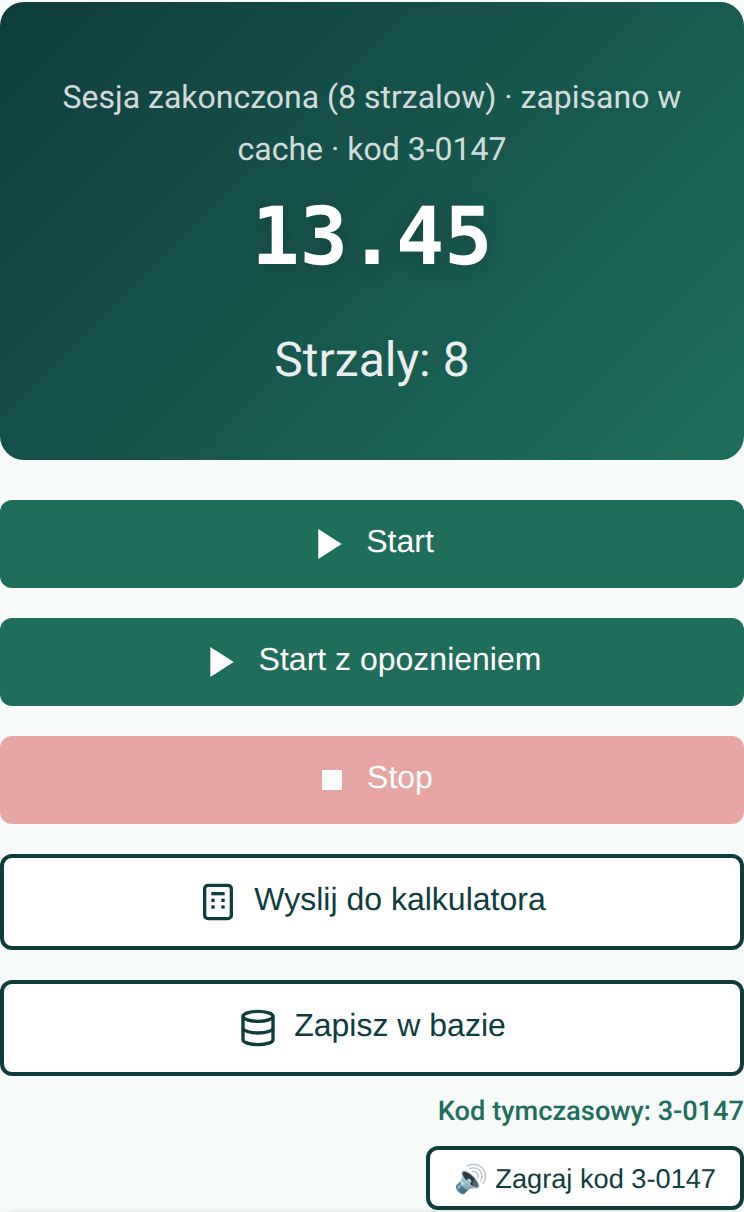
End of session · time, shot count and code 3-0147
Open the page in Chrome, tap “Connect to timer” and pick your SG Timer. From then on your phone or laptop shows what the timer measures. The interface is in Polish – the screenshots below show it as it is.
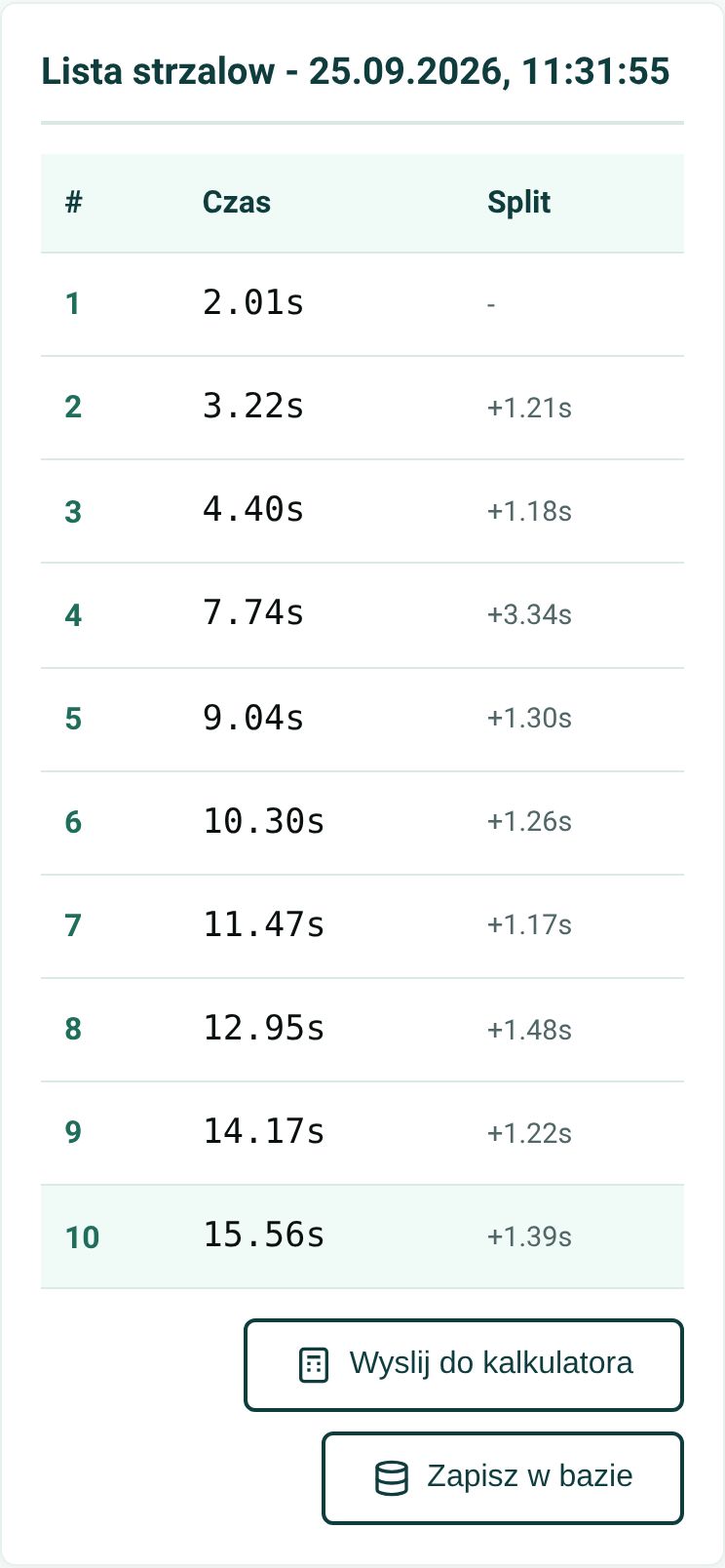
A large readout shows the time of the last shot and the shot count, and the table below lists every shot with its split. You can also start and stop the session from the app – instantly or with a random delay, as in a match.
The instructor reads results from a phone screen instead of the timer's tiny display. After the run the shooter gets the full list of splits, not just the final time.
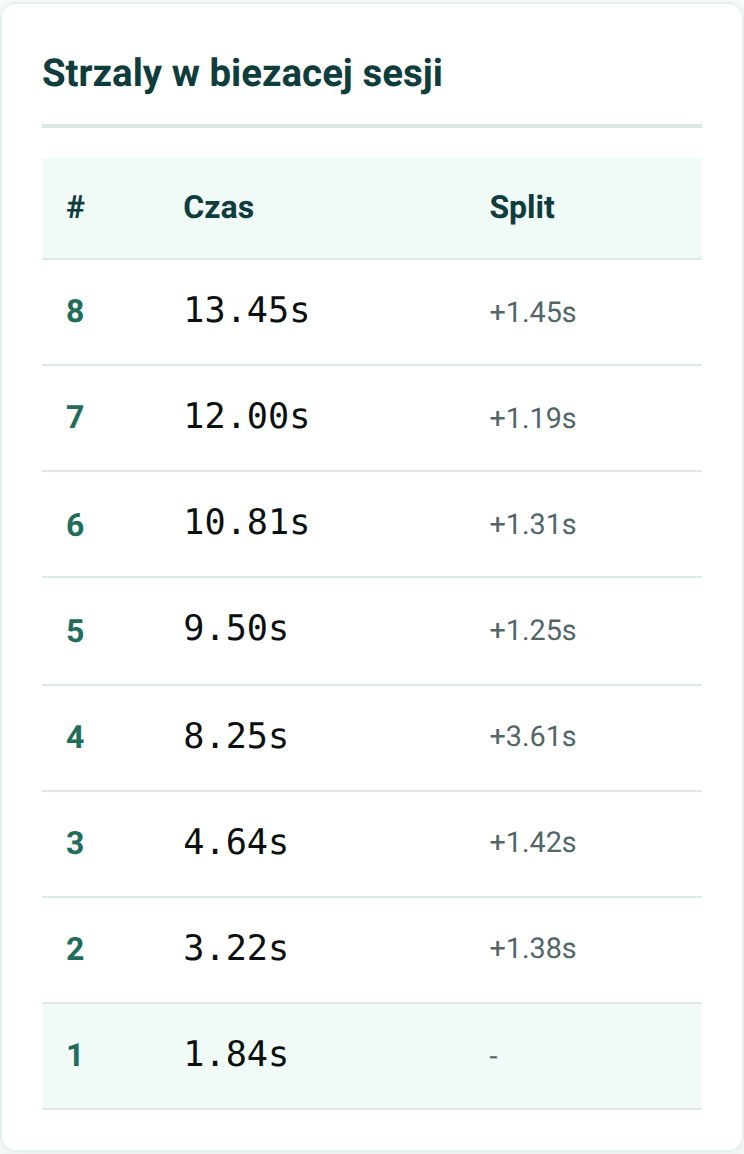
Shots in the current session · times and splits
“Refresh session list” reads every stored run from the timer's memory – newest first, with date, time of day, shot count and total time. Tap a session to open its full shot list.
No scrolling through sessions on the timer's small screen and no copying times onto paper – send any session to the calculator or save it to the database straight from the list.
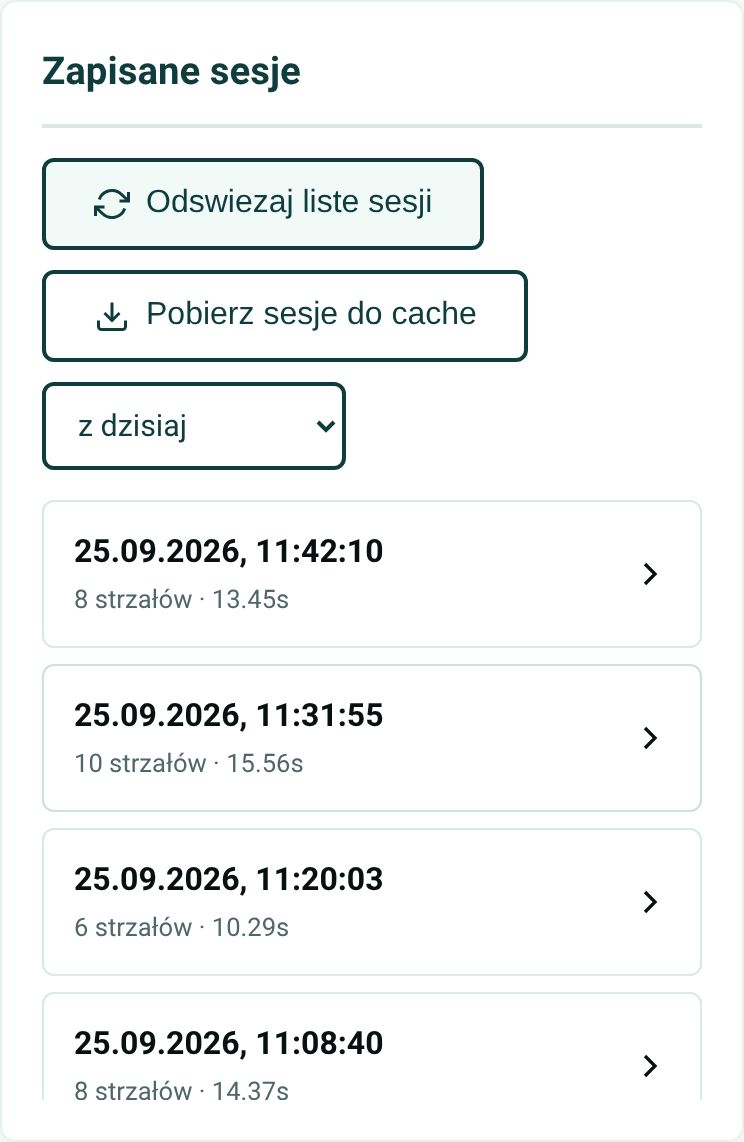
Saved sessions · read straight from the timer's memory
Open timer.pifpaf.fun, tap “Connect to timer” and pick your SG-SST4… device from the list. No pairing in system settings is needed.
Start from the timer or from the app. Every shot appears on screen right away, together with its split.
After the run the session is stored on the device. One tap sends it to the PiRO calculator – now, or in the evening when you are back online.
Shooting bays rarely have coverage. So apart from saving to the database, everything happens locally – on the phone or tablet.
SG Timer Monitor can be added to the home screen like a regular app. It opens instantly, even with no Internet – Bluetooth, the live view, temporary codes and the session cache keep working.
A banner at the top answers the two questions that matter on a weak signal: am I offline and how many sessions have not reached the database yet. When the network is back, one tap on “Send pending to database” catches up. Nothing is sent automatically over a flaky link – you decide.
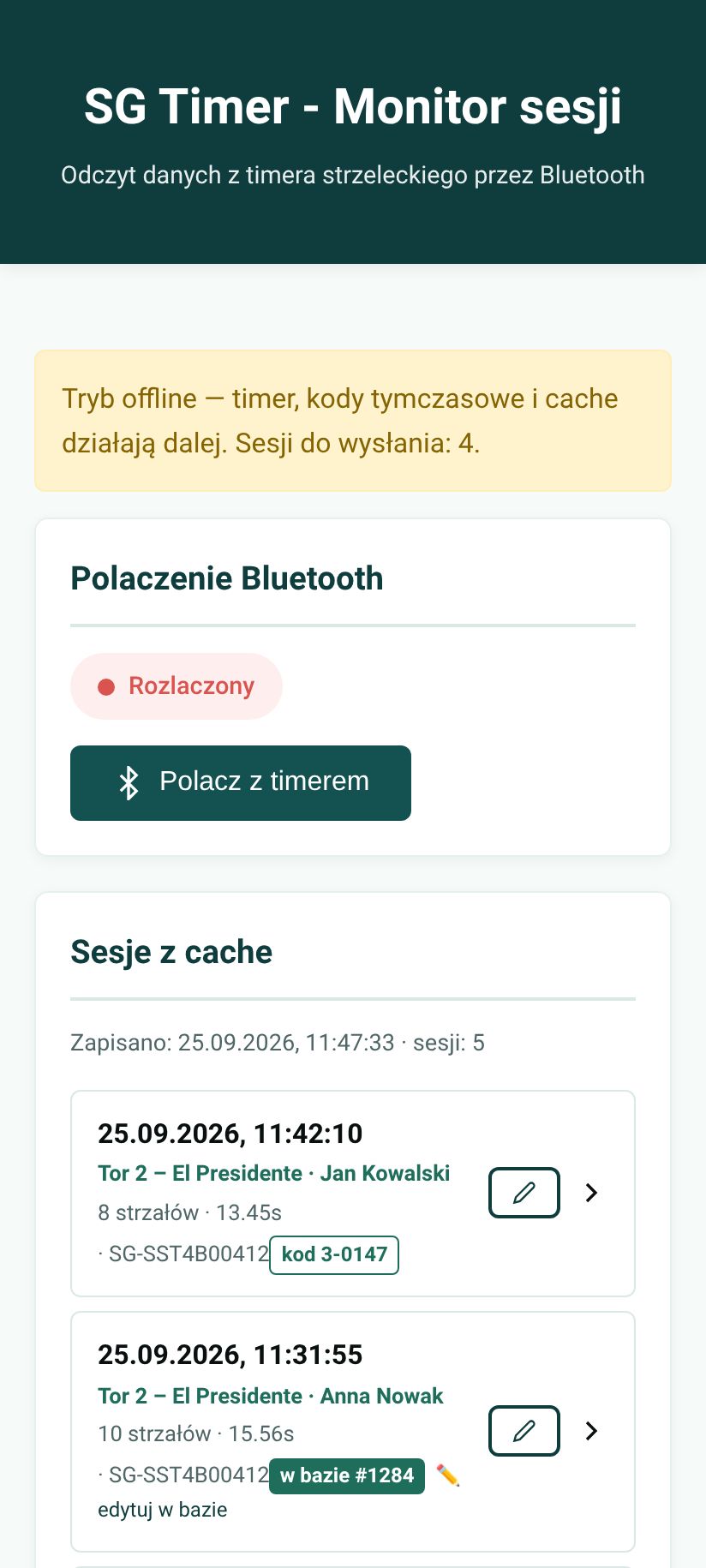
Offline mode · 4 sessions waiting to be sent
“Download sessions to cache” stores every session from today (or from the last 24 hours) on the device, with full shot lists. A finished run is added automatically when the stage and competitor are filled in. The list works without a connection to the timer – the timer can already be timing the next shooter.
Assign a stage and competitor to each session (the pencil icon), and badges show what is already in the database and which temporary code the run got. Export everything to a JSON file and load it on another tablet – the import merges sessions and never overwrites them.
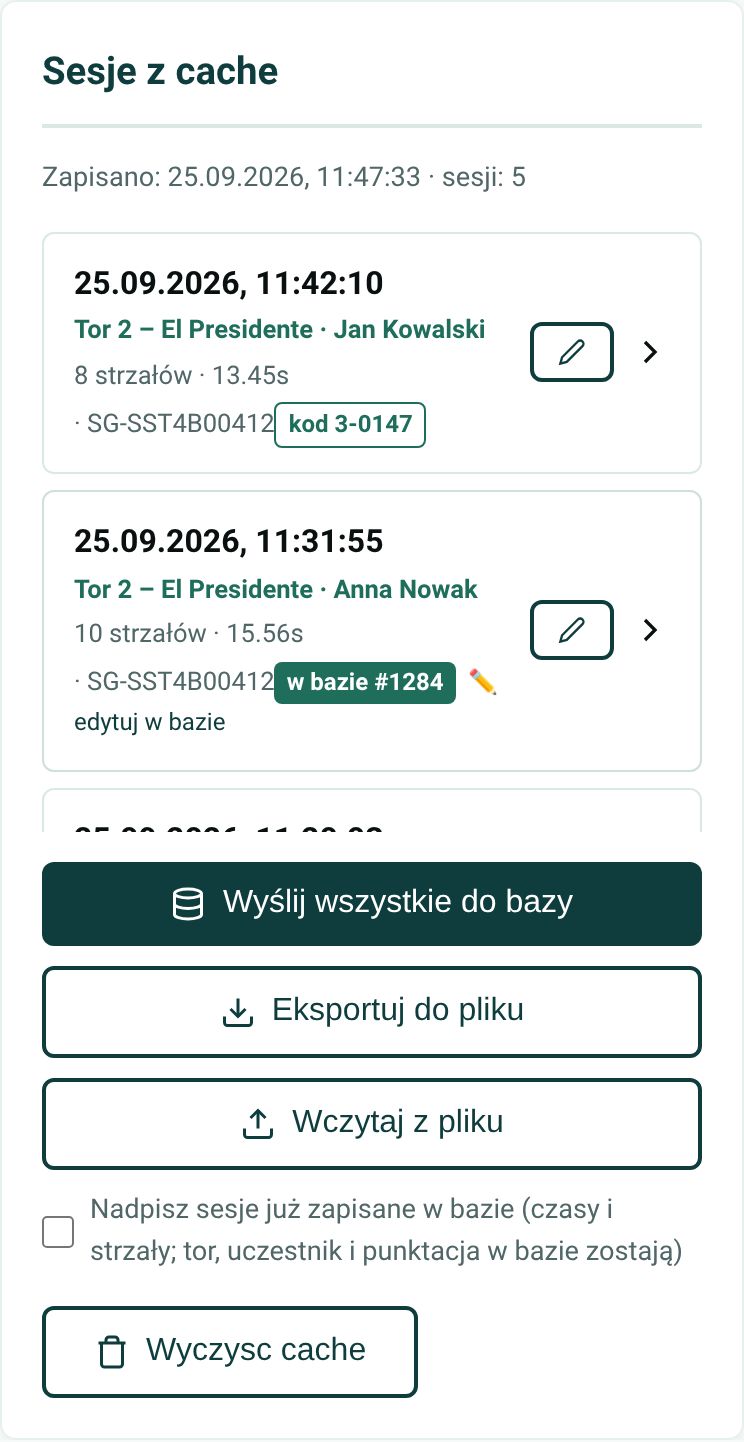
Session cache · stage, competitor, code and database status
The moment a session ends, the app gives the run a temporary code, e.g. 3-0147 (bay number + counter), and immediately plays it as a short audio tone. The camera filming the shooter picks the tone up along with the picture.
Later, ShotHUD decodes the code from the audio track, finds the session in the PiRO calculator and overlays the shot times on the video – no manual matching of recordings to scores. Each bay has its own code range, so codes from several bays never collide. With Internet available, the database entry ID can be played instead.
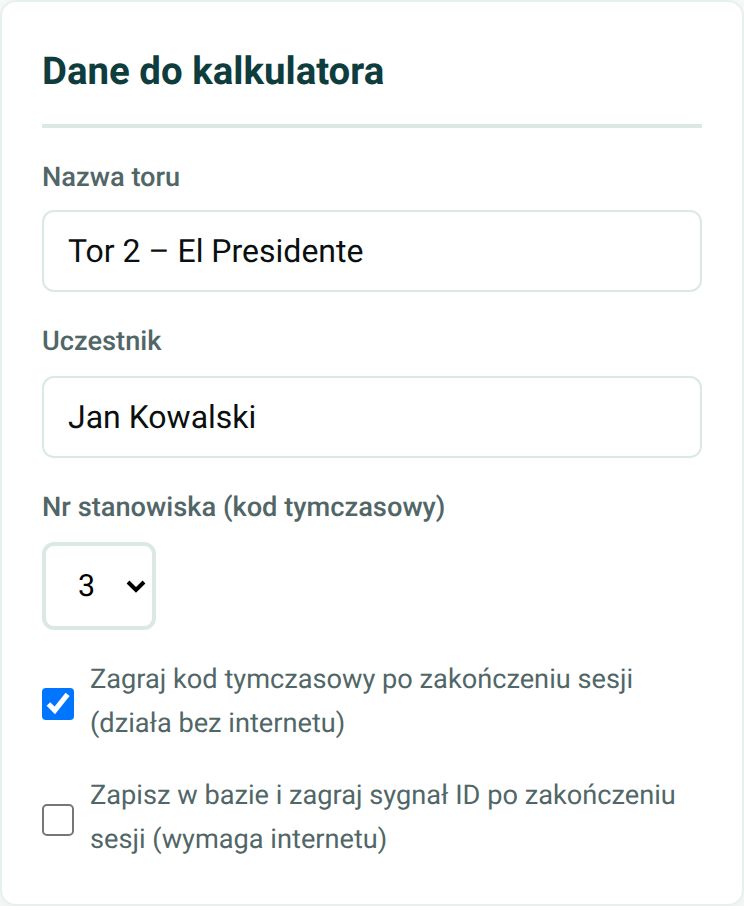
Stage, competitor and bay · the code plays itself after the run
Times are never retyped – they reach the calculator exactly as the timer measured them.
“Send to calculator” opens the PiRO calculator with the shot count, raw time, stage, competitor and a full session description already filled in – every shot with its time and split. The scorer only adds hits and penalties.
“Save to database” creates a results entry right away, with the timer's serial number and PAR settings, and then gives you a link to edit that single entry – no calculator password needed.
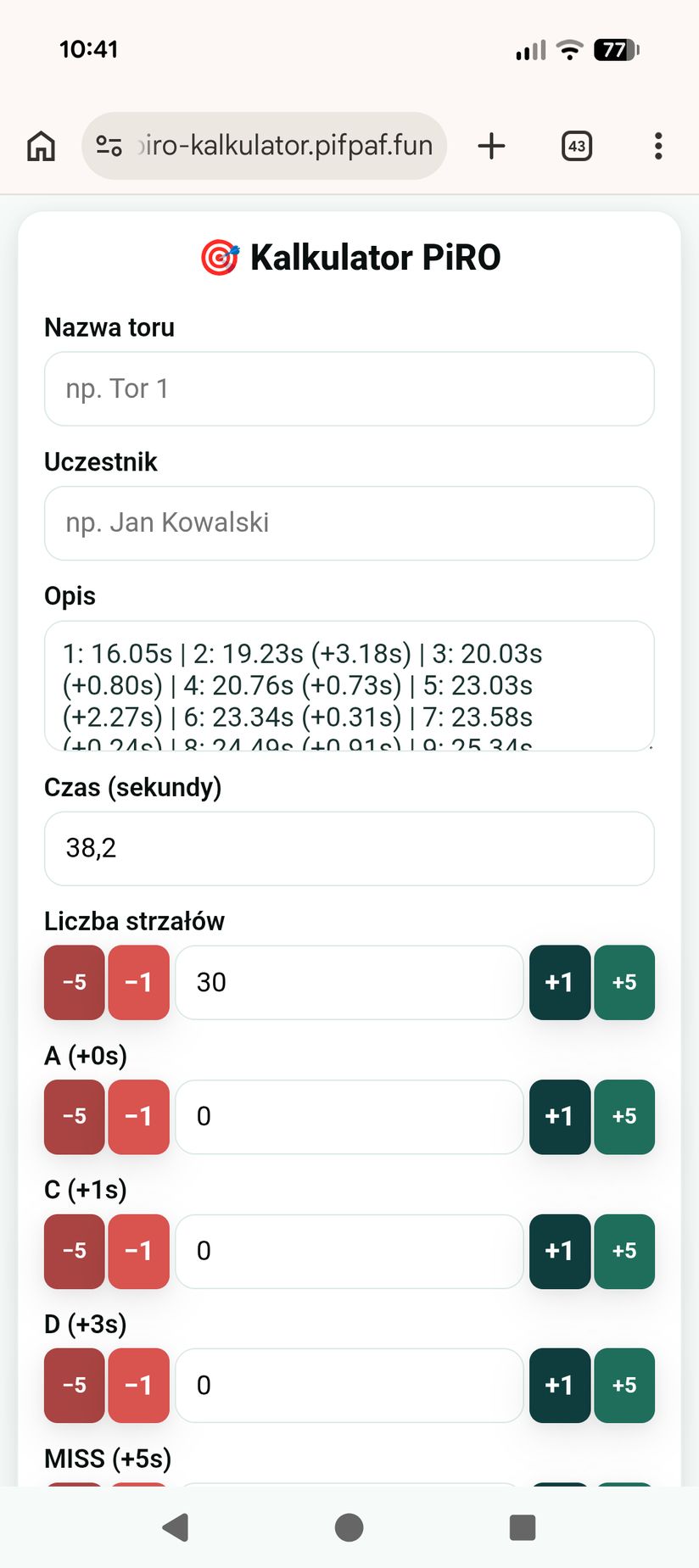
PiRO calculator · 30 shots filled in straight from the timer
No time to enter competitors at the bay? No problem. “Send all to database” uploads the whole cache, and the stage and competitor can be filled in later in the calculator.
Before uploading, the app asks the database which sessions from that timer are already there – by serial number and session ID – and skips them instead of creating duplicates. A corrected name or stage can later overwrite the existing entry, while the scoring entered in the calculator stays untouched.
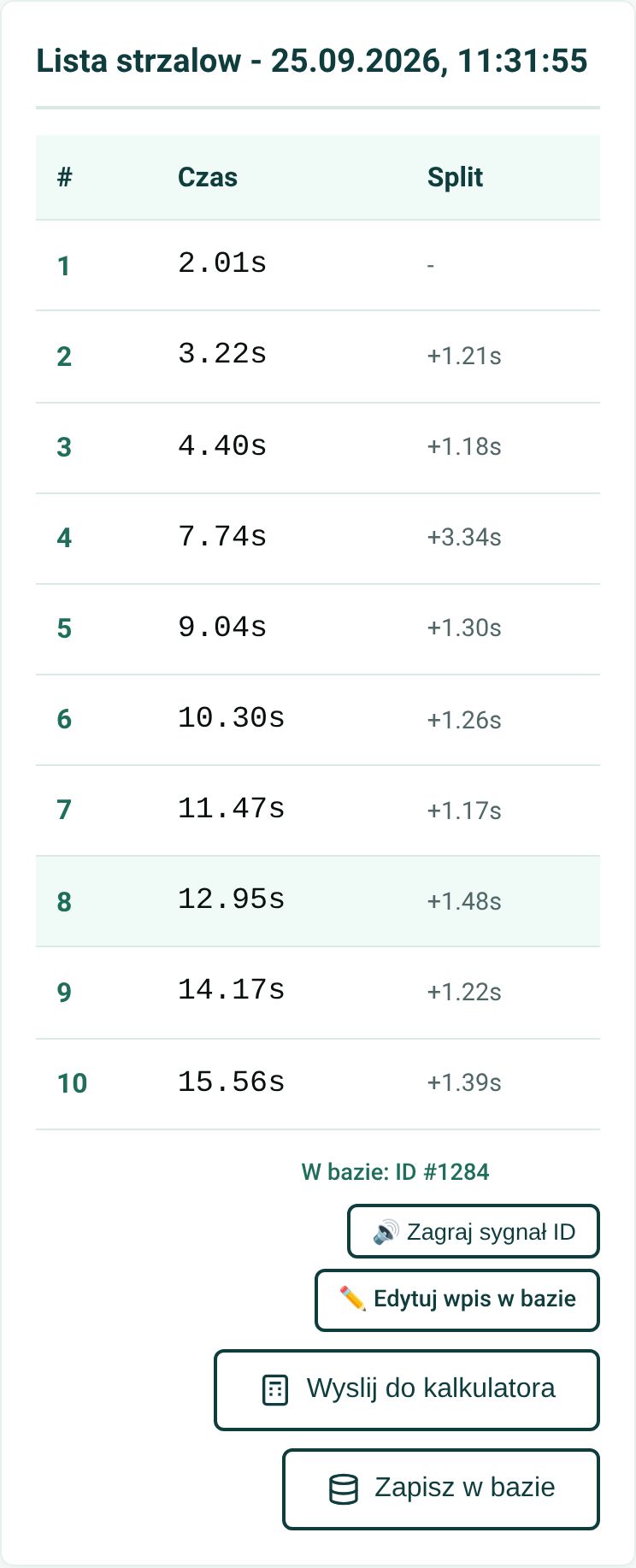
Session in database #1284 · ID tone and edit link
The “PAR settings” card writes a maximum time and a shot limit to the timer – the timer ends the session by itself once either is reached. The app remembers the values, applies them to every start from the phone, and resets them with one button.
The limits in force for a session go to the database with it – after the match you know under what conditions a result was shot.
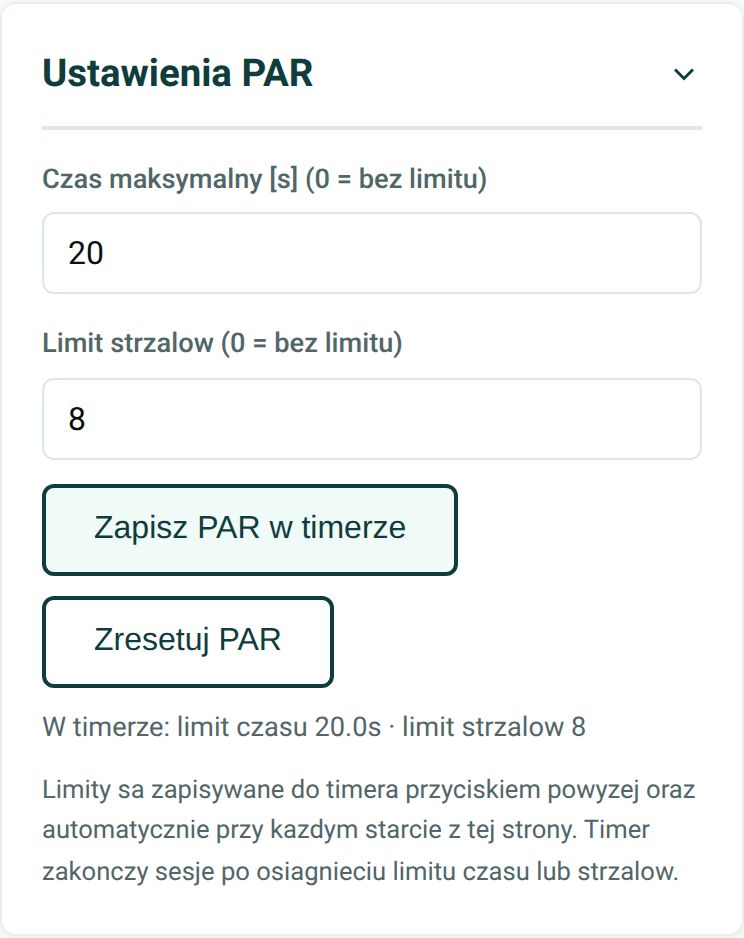
PAR settings · 20 s and 8 shots written to the timer
For anyone with an SG Timer who wants more than a final time on a small screen – in training, at the club and at PiRO, IDPA and IPSC matches.
Every shot with its time and split on a large screen. You can see where the time goes – on the draw, the transition or the reload.
All you need is Chrome, Edge or Opera with Bluetooth. No account, no login, no pairing in system settings. You can also add it to your home screen.
No signal does not stop the work. Sessions wait on the device, the banner shows what is pending, and you upload when the network is back.
Times reach the PiRO calculator exactly as the timer measured them. Bulk upload checks the database first and creates no duplicates.
A temporary code or database ID played as a tone lands on the recording. ShotHUD finds the session by it and overlays the shot times on the video.
Software by Zjawa.IT / PifPaf.fun. Every feature came from real training sessions and matches, and updates arrive by themselves the next time you open the page.
SG Timer Monitor is an independent PifPaf.fun tool – it is not a product of the SG Timer manufacturer.
Open timer.pifpaf.fun in Chrome, turn on Bluetooth and connect to your timer. Want to use SG Timer Monitor at a match or at your club? Write to us – we will help you set up bays, codes and the PiRO calculator.
⏱️ timer.pifpaf.fun PifPaf